
KRDC Blue Screen connecting to Raspberry PI
Ran into a strange problem today using the default VNC viewer in Kubuntu, KRDC. While trying to connect to my Raspberry PI I got a blue screen and no useful message about why the connection failed. Hmmm…
Issue
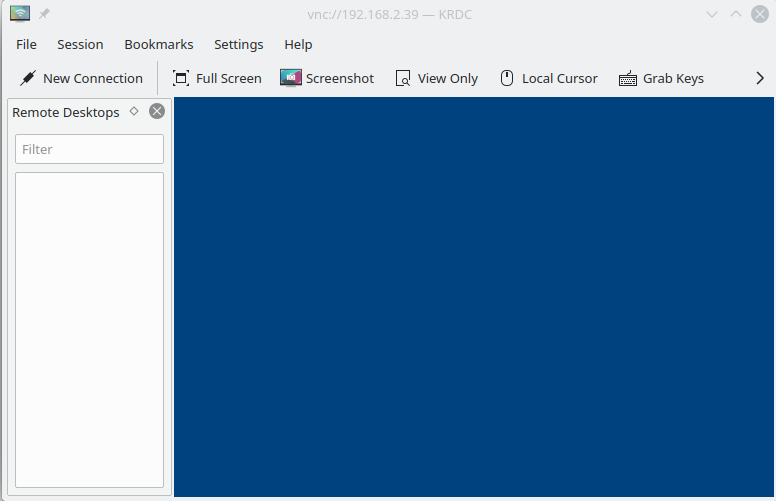
The VNC server was on and working on the PI, and I could connect to it with another VNC viewer on a different device, so the service was indeed up and running.
Analysis
Running Kubuntu 19.10, connecting via KRDC to a RaspberryPI Mobel B+.
After trying to review some extremely verbose debugging information, I tried using another VNC Viewer client, Remmina, and received this error message:
Unknown authentication scheme from VNC server: 13, 5, 6, 130, 192Turns out the RaspberryPI is using RealVNC with a linux-based authentication scheme, tying into the same authentication as the local user account on the RaspberryPI. It works with the other VNC viewers I’ve used, but is not compatible with KRDC or Remmina.
Workaround
The VNC server can be configured with an explicit VNC password, which follows an authentication approach supported by KRDC and Remmina. On the Model B+ there doesn’t seem to be a nice GUI to configure this (as there is in newer PI models), so we’ll have to make changes directly in the config file.
After some googling and investigating various dead ends, I found a working solution on this reddit post, and although it’s written about the Raspberry PI Zero it applies equally well to the Model B+ (and probably other models too).
From the terminal on the device, or via SSH remotely, you can configure the VNC server on the PI to use an explicit password by editing the VNC server config file. I use vi but you can change it to use your preferred editor. (Also note you can’t navigate to this path as a non-root user). Edit the config file with:
sudo vi /root/.vnc/config.d/vncserver-x11and add the following line at the end:
Authentication=VncAuthTo set the password for VNC, use the following command:
sudo vncpasswd -serviceThen to have the change take effect, use:
sudo vncserver-x11 -service -reloadAfter making these changes on my PI via SSH I tried Remmina again, and got an authentication screen as I was originally expecting:
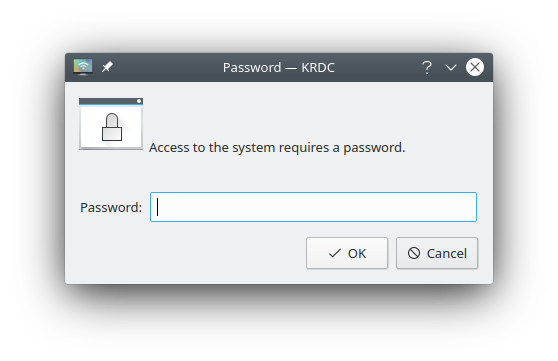
and success!

